Master Data editing - Contact Person
Introduction
With App Version 2.8.0, contacts can be created or edited within the Innosoft Mobile App and assigned to an assignment (or project). A new dialog box is now available for this purpose, which is based on the contact page from the FSM.
However, the edited contacts are not transferred directly after synchronization, but must first be approved in the FSM. Only after these changes have been accepted the modified contacts are available to everyone throughout the system. This procedure is also referred to as the approval process.
Configuration in the Admin Console
The entire feature can be enabled or disabled via the Admin Console in the General Settings using the "Enable Approval Process for contacts" setting. 
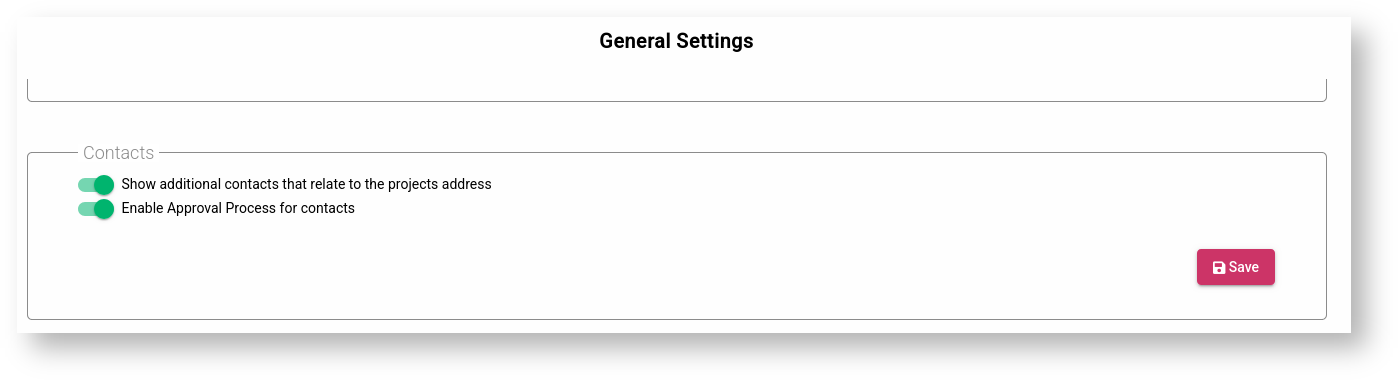
Please note that the "Show additional contacts that relate to the project address" option must be enabled for this function to work.
The procedure for adding and editing contacts is described in the article Mobile App - Contacts.
Approval process and notification of accepted or rejected changes
When contacts are added or edited in the Innosoft Mobile App, they are initially only visible to the user of the app and are not yet entered in the system and therefore not yet visible to all users. They must first be reviewed and approved in the FSM on the Approval page before they can be added to the system and made available to all users.
Once a change has been accepted or rejected in FSM, a corresponding notification appears in the Innosoft Mobile App, which can be viewed later on the notifications page.
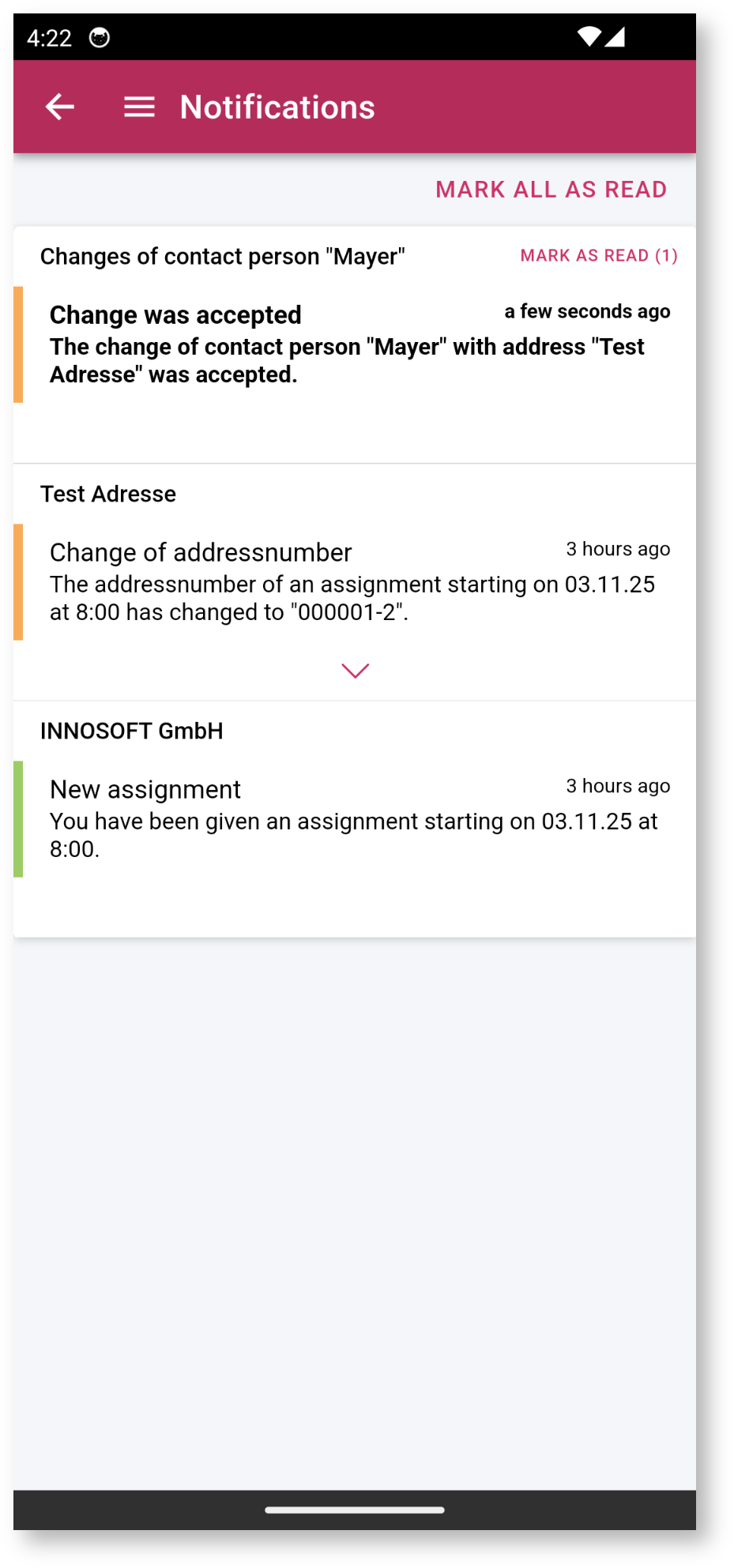
If a change has been rejected, it is automatically reset or deleted in the Innosoft Mobile App. This means that previously added contacts that have been rejected are no longer available. The corresponding notification may also include a reason for the rejection.
Table structure
Changes made in the Innosoft Mobile App are not written directly to the main tables, but are first verified and approved by headquarters (FSM). There are three tables for this approval process, which temporarily store the changes made for each user: Approval, Approval_Entity, and Approval_Entity_Fields.
These three tables enable you to manage the approval process for editing contact data and, in the future, other objects such as machines.
Tables
Approval
The Approval table contains all approvals that have been made by the respective users from the app. Here you can find the respective header data such as the approval ID, the creator, and the creation date.
|
Column |
Type |
Description |
|
Id |
NVARCHAR(50) |
Unique ID of the approval process (GUID). |
|
Status |
NVARCHAR(20) |
Current status of the approval process. Possible values are "Pending", "Approved", "Rejected". |
|
Created_By |
NVARCHAR(12) |
Name of the user from PWUSER who created the approval process via the app. |
|
Created_At_Utc |
DATETIME |
Time in UTC when the approval process was created. |
|
Created_At_Offset_In_Minutes |
INT |
Corresponding offset to Created_At_Utc. |
|
Reviewed_By |
NVARCHAR(12) |
Name of the user from PWUSER who approved or rejected the approval process via the FSM. The status should also be set to "Approved" or "Rejected". |
|
Reviewed_At_Utc |
DATETIME |
Time in UTC at which the approval process was approved or rejected. |
|
Reviewed_At_Offset_In_Minutes |
INT |
Corresponding offset to Reviewed_At_Utc. |
|
Rejection_Reason |
NVARCHAR(255) |
Optional comment field for specifying a reason for rejection. |
Approval_Entity
The Approval_Entity table specifies which tables are affected by an approval and what type of change is involved (status of the value "Insert", "Update", "Delete"). In addition, further actions are performed depending on the status:
Insert: With an "Insert", the corresponding partial table entries are already written to the tables as a template. For VKUNPART, an entry with ISINACTIVE = 1 and Approval = 1 is already set (the VKUNPART.Approval field has been added). The reason for this is that the technician creates links to this contact in the app, and these linked contacts must be available at the time of transfer. In the case of VKUNPARTPRJ, the entries for PROJNR, ADRNR, and POS are written to the Approval_Entity_Fields table.
Update: During an Update", the values for the changed fields are written to the Approval_Entity_Fields table.
Delete: Here, the entry in Approval_Entity is sufficient as a marker indicating which object should be removed from the table.
|
Column |
Type |
Description |
|
Id |
NVARCHAR(50) |
Unique ID of the Approval_Entity (GUID). |
|
Approval_Id |
NVARCHAR(50) |
ID of the associated approval process. |
|
Action_Type |
NVARCHAR(20) |
Type of change. Possible values are "Insert", "Update", "Delete". |
|
Entity_Name |
NVARCHAR(50) |
Type of affected object or table name (e.g. "VKUNPART", "VKUNPARTPRJ"). |
|
Entity_Id |
NVARCHAR(50) |
ID of the affected object. Is ISGUID from the affected table. |
Approval_Entity_Fields
The Approval_Entity_Fields table contains all changes from the Approval_Entity table. The changed field from the respective table and the corresponding newly assigned value are written here. In certain cases, the data is also written directly to the respective table (e.g., in the case of "Insert" in VKUNPART).
|
Column |
Type |
Description |
|
Id |
NVARCHAR(50) |
Unique ID of the Approval_Entity_Field. |
|
Approval_Entity_Id |
NVARCHAR(50) |
ID of the associated Approval_Entity. |
|
Field_Name |
NVARCHAR(50) |
Name of the field that has been changed. |
|
Value_String |
NVARCHAR(255) |
New value of the field, if it is of type string. |
|
Value_Int |
INT |
New value of the field, if of type Int. |
|
Value_Datetime |
DATETIME |
New value of the field, if it is of type Datetime. |