App Server: Access to the Innosoft Document System
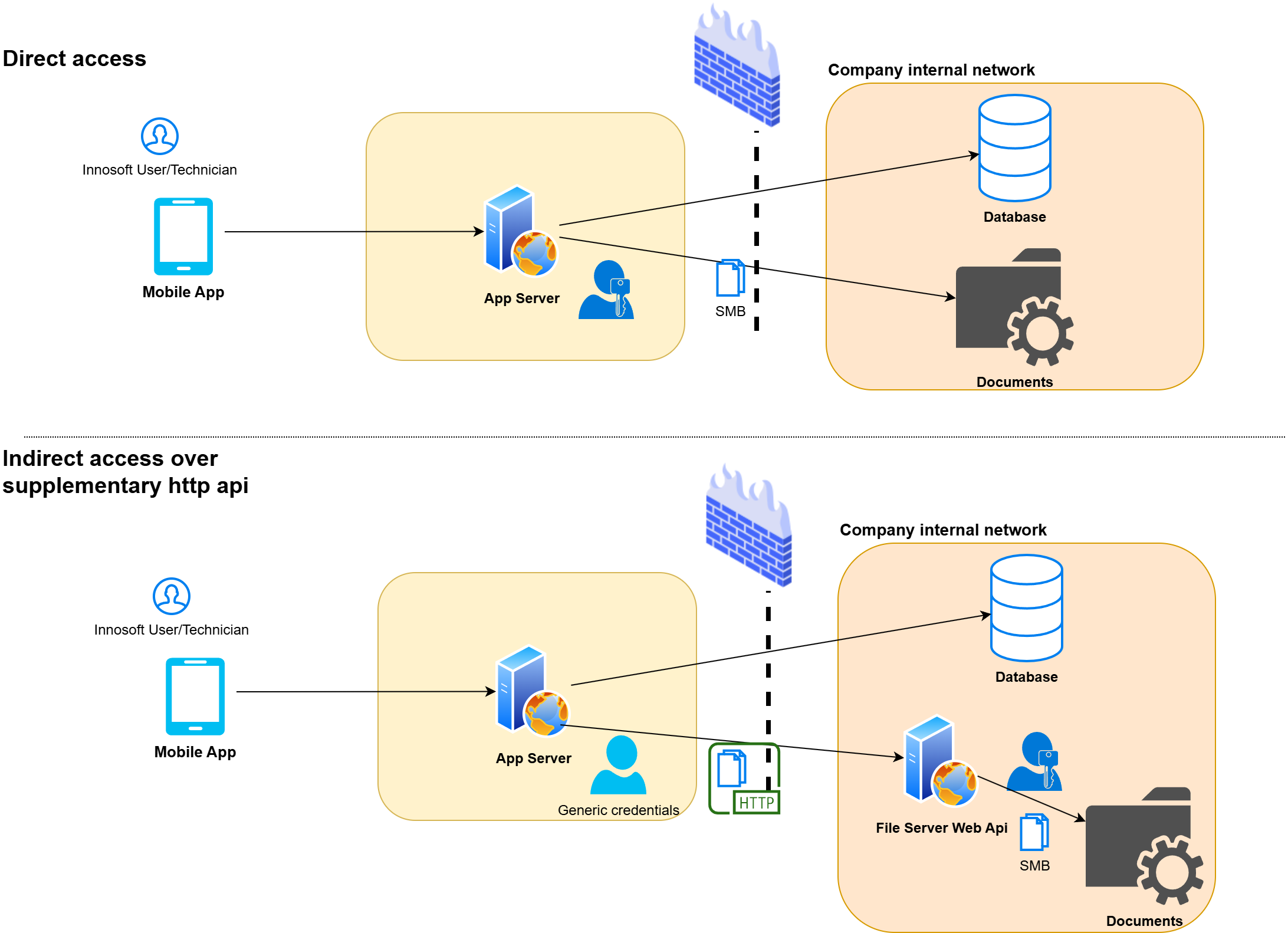
The App Server requires access to the Innosoft Document Directory in order to provide the app with the necessary condition manuals, printed .pdf files and other documents. The technician can also enter documents that are imported into the Innosoft document structure in the Control Center. The Mobile App does not access the Document Directory directly via SMB, but via HTTP-based download and upload apis provided by the App Server. To do this, the App Server requires access to the following directories:
Standard Innosoft Document Directory
Output directory of the print service (if the .pdf is not included in the document structure)
In the standard configuration, the App Server accesses the paths directly via SMB. This means that if the App Server is located in a DMZ and the document share in the intranet, the corresponding shares must be added to the firewall. If the admin does not want to open the firewall for SMB, we offer an alternative access option via HTTP. To do this, the admin installs the web application Innosoft Mobile - File Server Web Api in the intranet and only opens the necessary TCP ports for HTTP access of the App Server from the DMZ to the separate web application. The web application in turn provides the App Server with download and upload Apis and accesses the files when called for the App Server.
Setting up alternative file access via HTTP
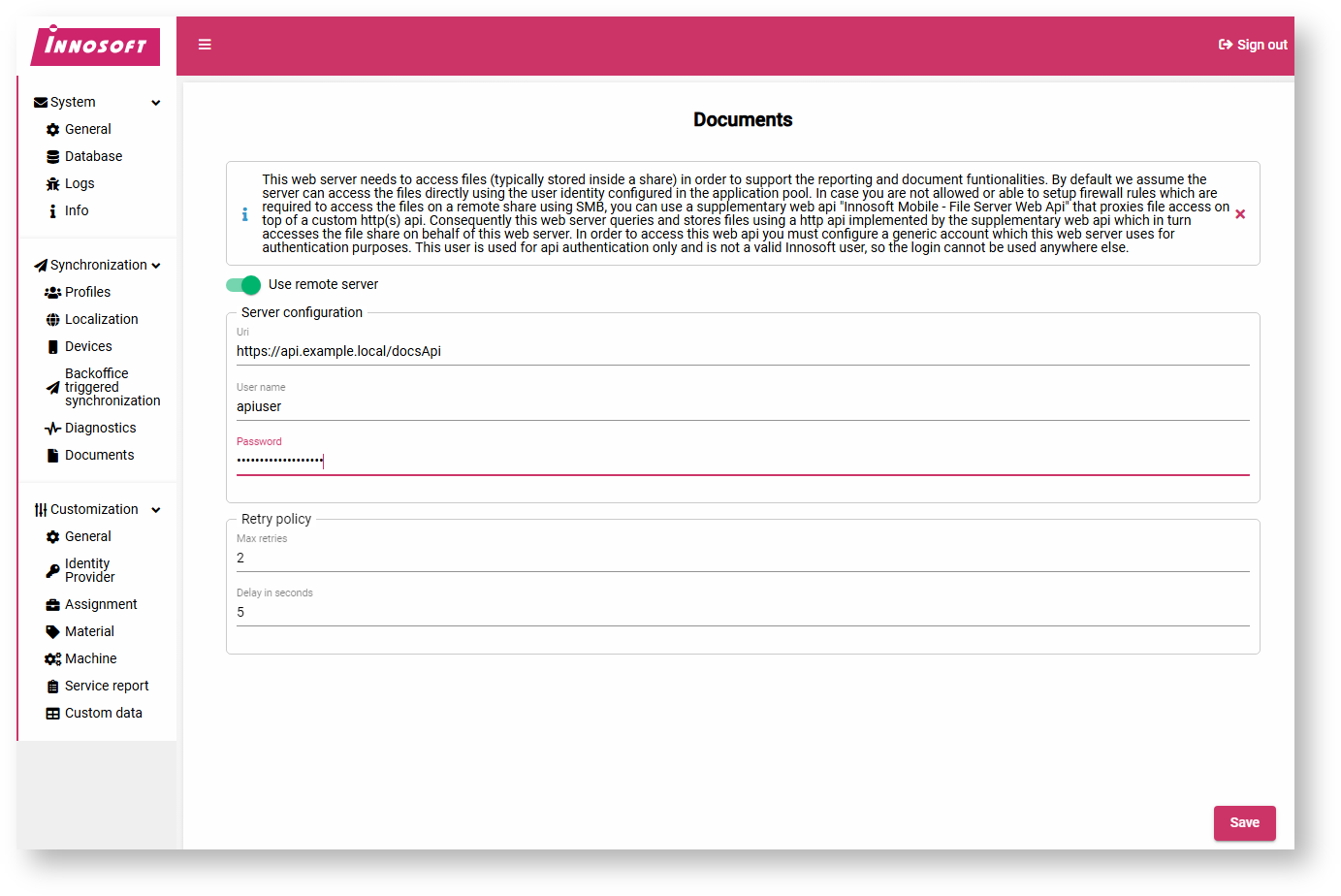
First install Innosoft Mobile - File Server Web Api and ensure access to the necessary file shares/paths. To activate alternative document access, open the App Server Control Center and navigate to the "Synchronization / Documents" page. Check the "Use remote server" option and enter the base url in "Uri" under which the App Server can reach the previously set up File Server Web Api. In addition, assign a user name and a password with which the App Server accesses the Api.
This is not an Innosoft user (PwUser). The user is stored separately encrypted in the database and automatically read by the File Server Web Api. The user can only be used within the Document Api.
After you have clicked on "Save", all file accesses of the App Server run via the configured document api.