Integration of FSM pages in the App (FSM Portal)
Requirements
The App Server must be able to reach the FSM via HTTP (the FSM does not have to be directly accessible from the app / from the internet).
Install the Microsoft URL Rewrite Module and set it up for the FSM (not the App Server for the FSM side).
App Server 2.6 or newer and FSM 2.2 or newer
Configure FSM Portal in the App Server
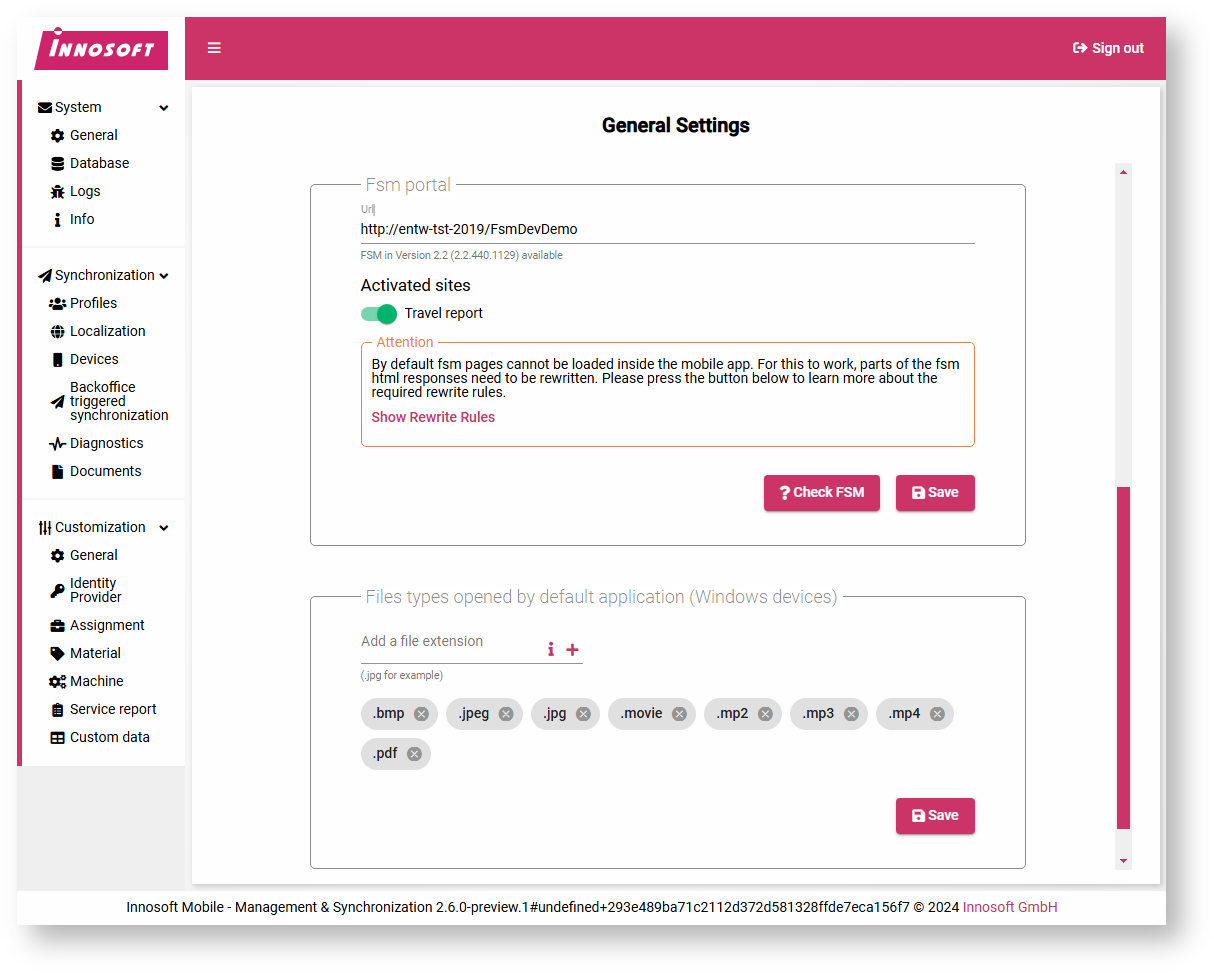
Open the Control Center administration interface of the App Server. Navigate to the "Customization / General" page and scroll to the "Fsm portal" area. In the "Url" field, enter the base url under which the FSM can be accessed. The App Server must access this URL, the app does not need access to the FSM, as the App Server acts as a reverse proxy and forwards app requests to the FSM. You can find a more detailed technical description in the article Integrating FSM pages into the Mobile App (Technical Details) . Then click on "Check FSM". If the FSM is installed in the correct FSM version (2.2 or newer) and the App Server can access the URL, a version notice appears and you can release the FSM pages that are provided in the app.
Before you save and release the pages for the Mobile App, you must make some adjustments to the IIS page configuration of the FSM in the corresponding "web.config". These adjustments include rewrite rules that make the FSM compatible with requests from the app. Copy these rewrite rules from the dialog under "Show Rewrite Rules". A description of how to set up the rewrite rules can be found in the following section. After setting up the rewrite rules, save the form to make the configured pages available for the Mobile App.
Installing and configuring the IIS URL Rewrite Module
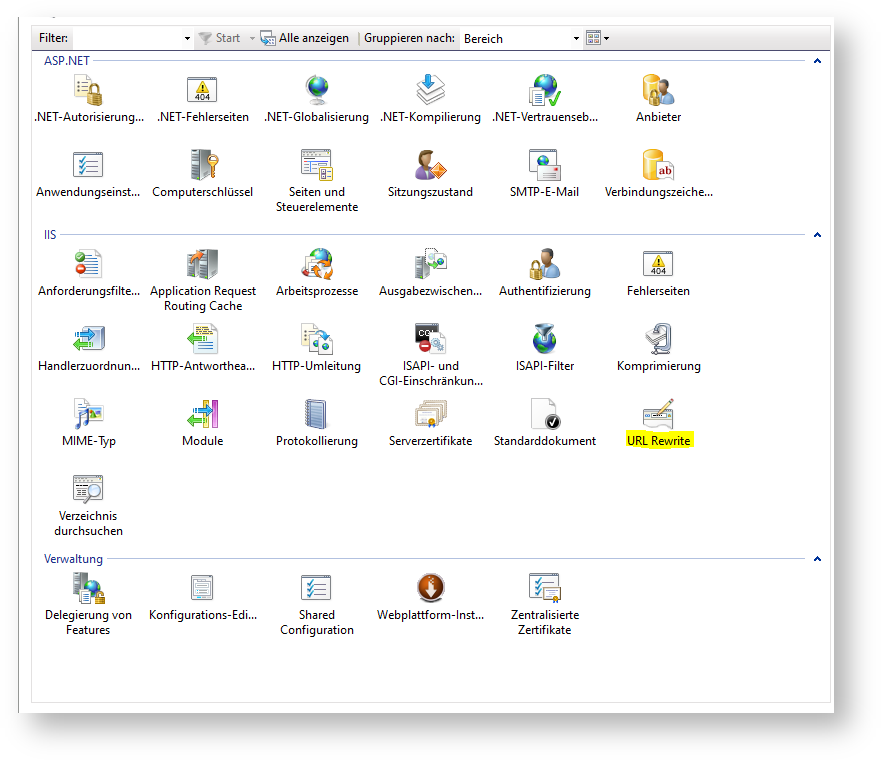
Make sure that the optional Microsoft IIS module "IIS URL Rewrite Module 2.1" is installed in the IIS that provides the FSM web application. Then make sure that the "Url Rewrite" module is displayed in the "IIS" section of the IIS administration interface. If the module is not there after installation, it may be necessary to restart the machine. If the module has not yet been recognized by the IIS and you add the rewrite rules, the FSM cannot be started (500 error).
After installation, open the "web.config" of the FSM-IIS application. Add the previously copied XML configuration from the App Server administration interface to the web.config XML file. The XML node to which you have to add the copied XML configuration is specified in the copied XML configuration in the form of an XML comment. Then save the customized web.config file. The FSM web application then restarts and the configuration is completed.
Example
Web.config (FSM):